Connect Google & Gmail
Calendar and contacts come through your own Google Cloud app — one consent, two connections. Gmail comes separately, through an app password over IMAP. Two small setups, deliberately different, and this page does both.
1
Part A · Gmail — turn on 2-Step Verification first
The App-passwords page does not exist until 2-Step Verification is on — no amount of searching the Security page will surface it before that. myaccount.google.com → Security → 2-Step Verification → turn it on. Then come back here.
2
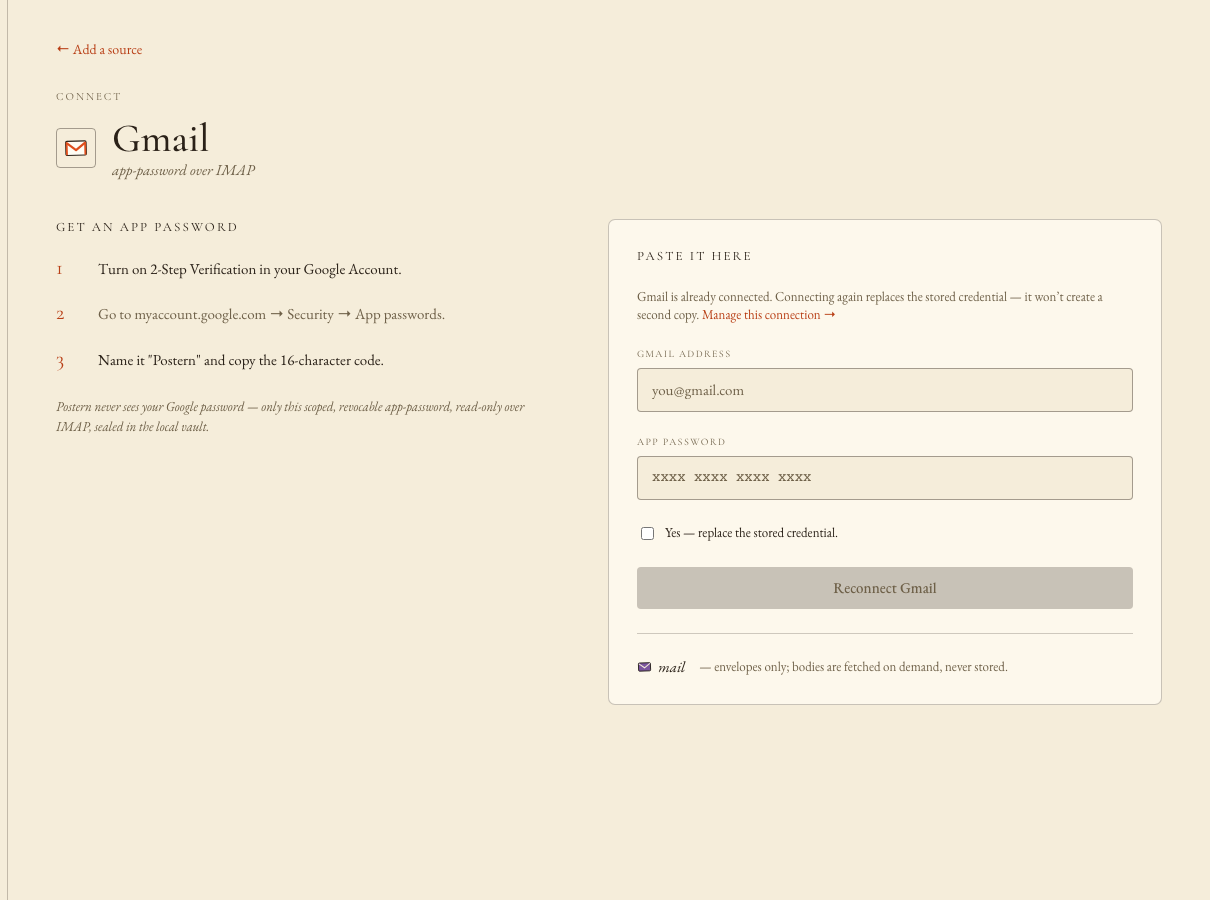
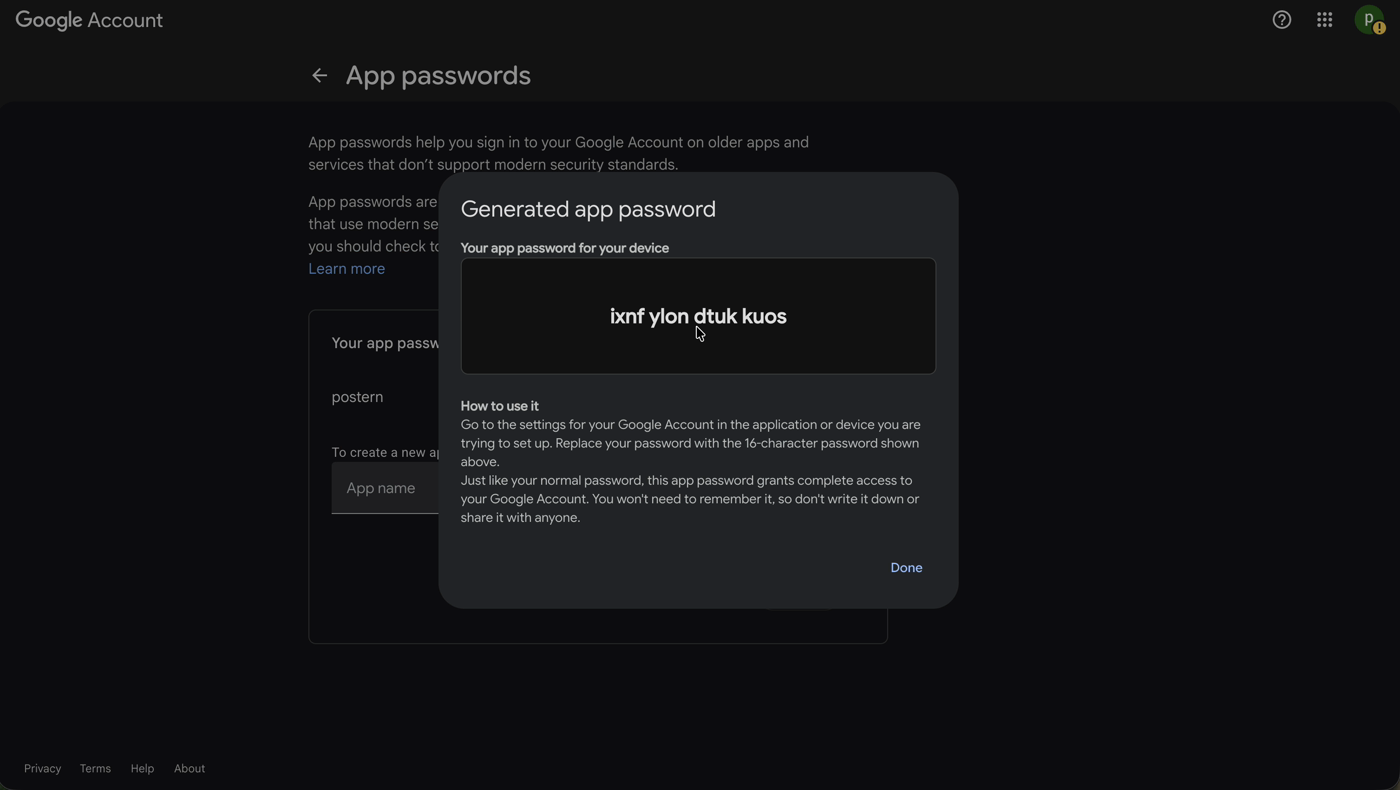
Create the app password, paste it with your address
Go directly to the address below, create a password named "Postern", then Console → Sources → Gmail → your address + the 16 characters. Paste them however you like — the whitespace is stripped before sealing. Mail bodies are never stored; only envelopes are cached, and content is fetched on demand.
3
Part B · Calendar & contacts — the consent screen comes first
At console.cloud.google.com open the project picker at the top of the page → New project — everything in this Part happens inside that ONE project. First enable the two data APIs: APIs & Services → Library → search "Google Calendar API" → Enable, then "People API" → Enable. Then configure the consent screen — the modern console names it Google Auth Platform → Audience — audience External (Internal is only offered to Workspace organizations), app name and contact emails, and the step that blocks the whole flow if skipped: Test users → add your own address.
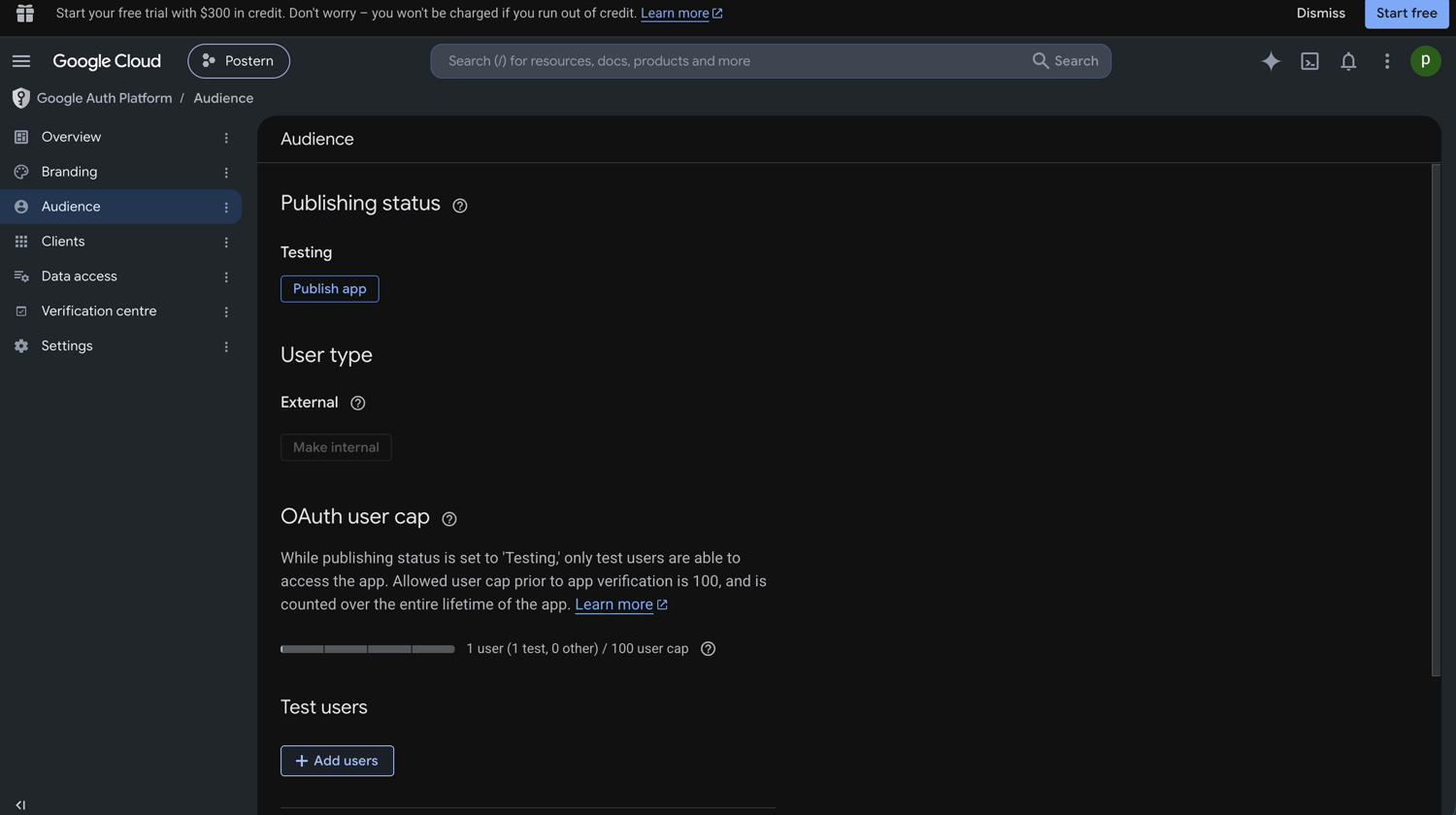
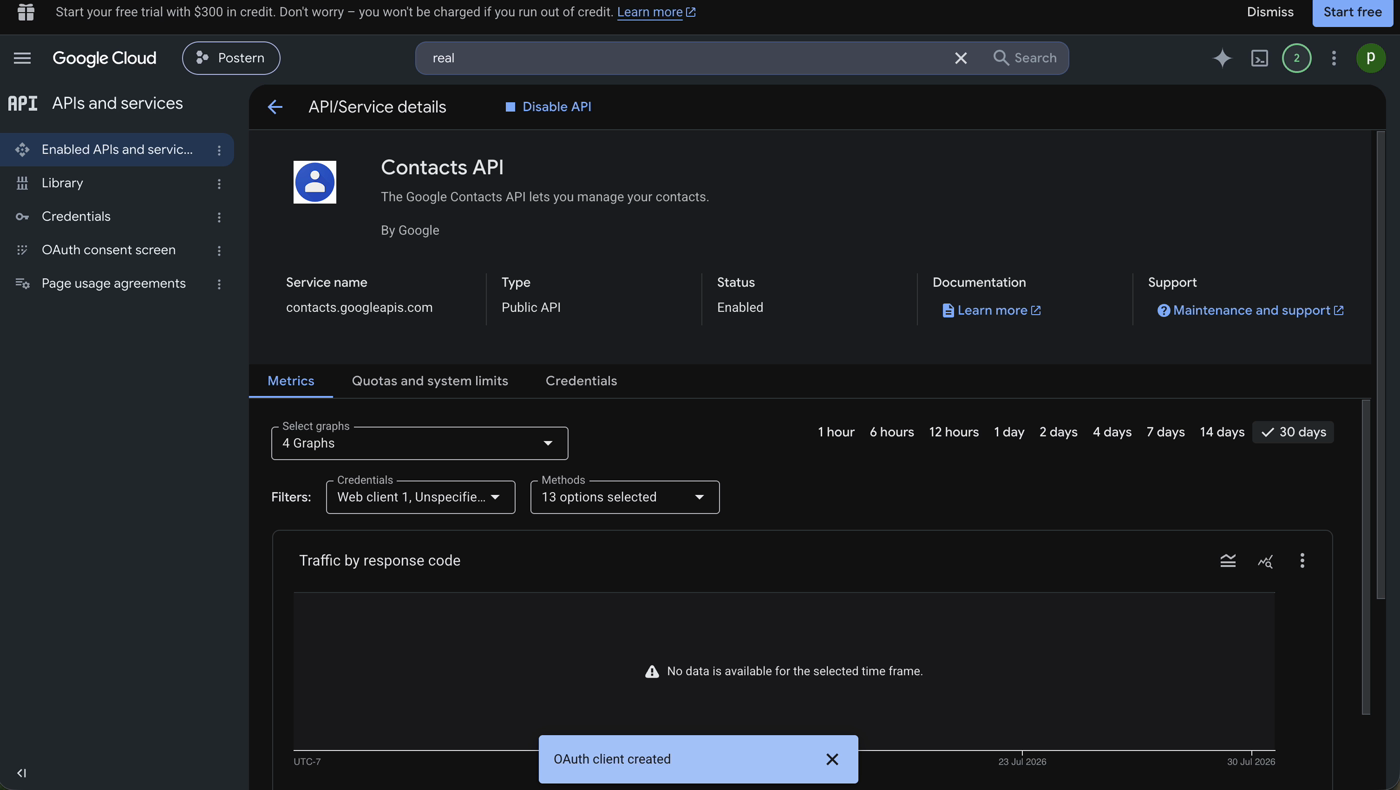
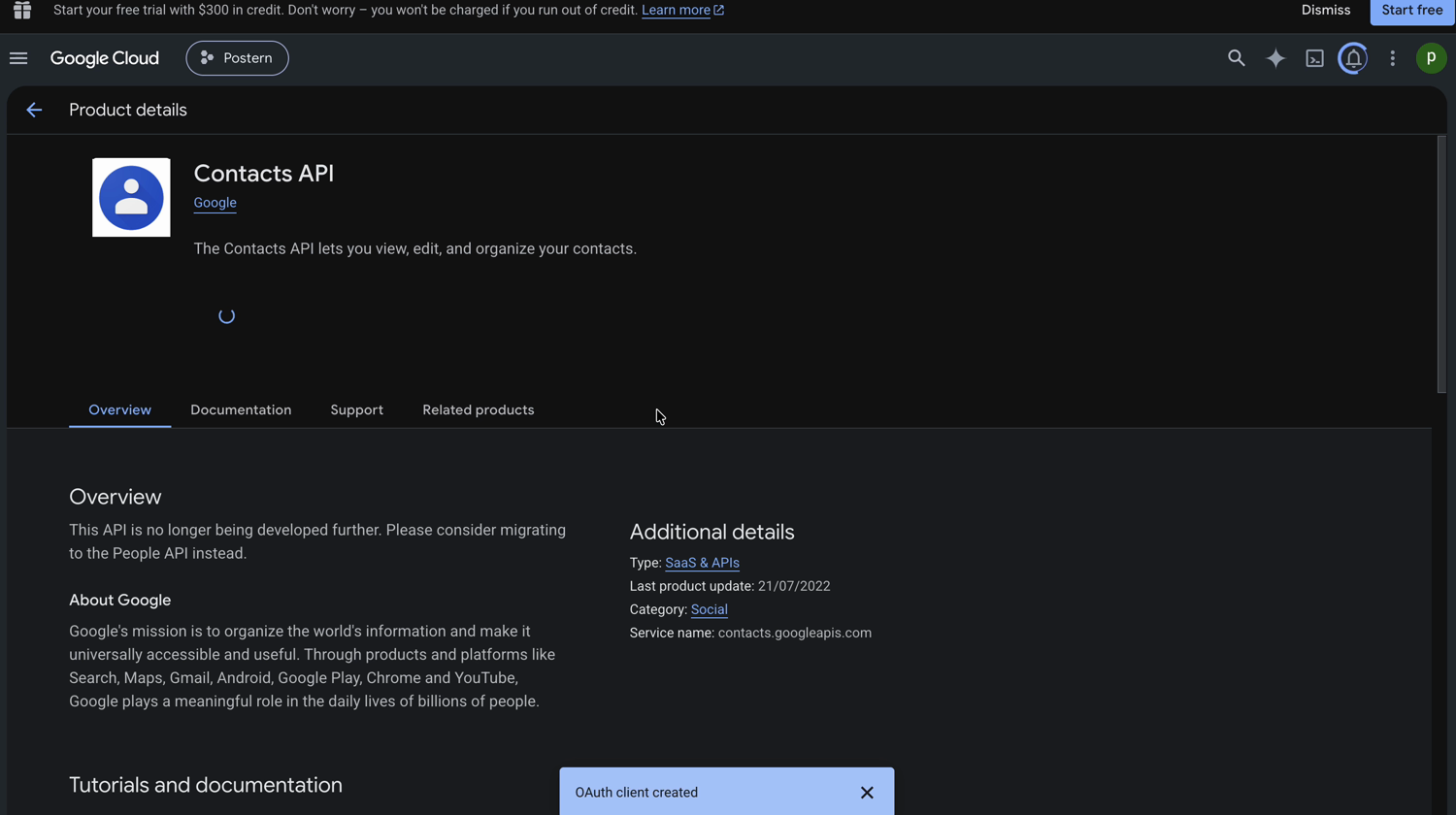
left: the Audience page — Testing status, External, Test users. middle: the RIGHT People API. right, red-edged: the deprecated Contacts API decoy — if your screen says this, you are on the wrong page.
4
Create the OAuth client — type Web application
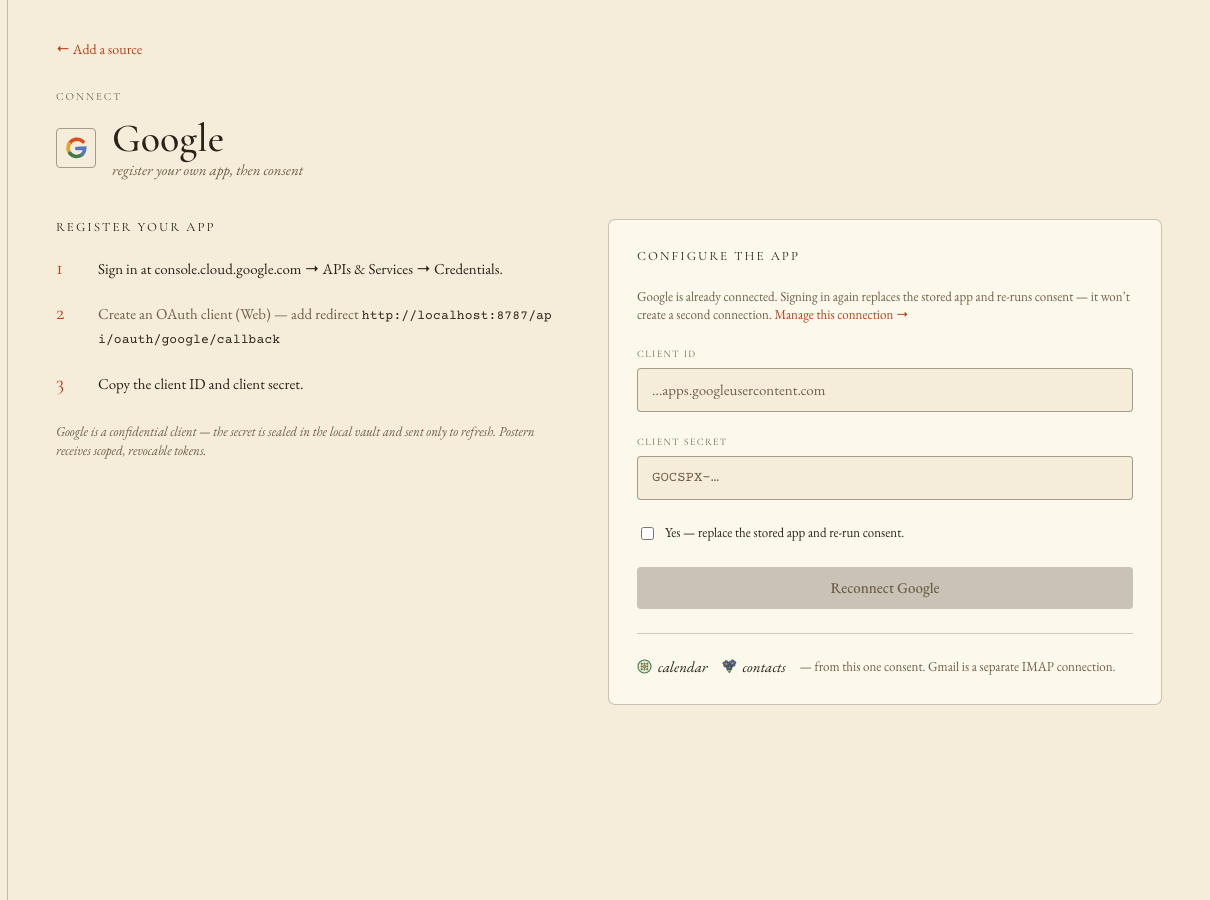
Google Auth Platform → Clients → Create client → application type Web application. Under "Authorized redirect URIs" — not the JavaScript-origins list above it — add the URI pasted from your own Console's Google card. Never typed, and never copied from this page: Google exact-matches the string, and the Console's copy follows your gateway's own port. On a stock install it reads as below. Then copy both the client ID and the client secret: Google is a confidential client here, and the token exchange fails without both.
5
Paste both into the Console, sign in — and expect the warning
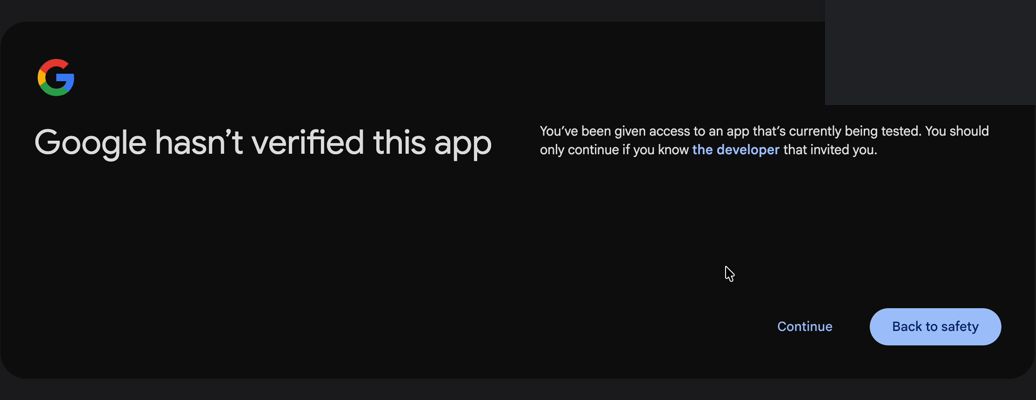
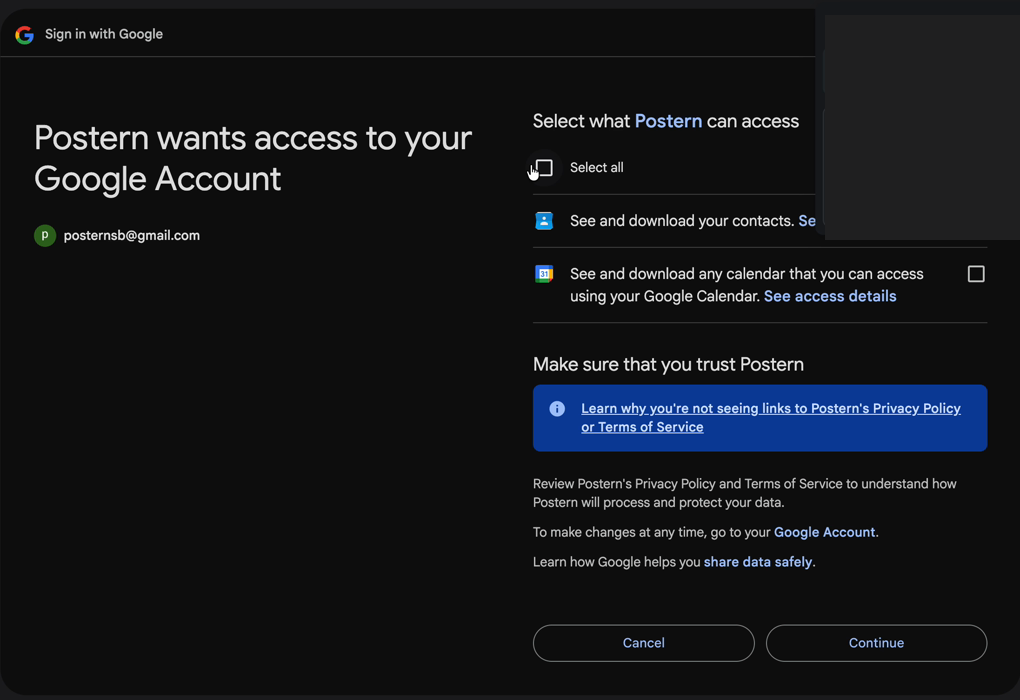
Console → Sources → Google → client ID + client secret → "Save & sign in with Google" — and sign in as the account you listed under Test users; any other account is refused. A Testing-status app shows Google's "unverified app" interstitial — Continue is the small link on the left; the prominent blue button is "Back to safety" and it aborts. On the scopes screen the checkboxes start EMPTY: tick "Select all", or continuing will "succeed" while granting nothing. Approve, and the one consent fans out into two connections: calendar and contacts. One more clock: the consent window is 10 minutes and single-use — wander off mid-flow (say, to go add your test user) and the stale tab fails; start again from the Console card, nothing is lost.
WHAT STANDS WHEN YOU FINISH
Three connections in all — Gmail over IMAP from Part A, calendar and contacts from Part B — and any agent granted those sectors answers from them after the first sync. One standing cost until you act on it: while the Cloud project's publishing status stays "Testing", Google expires Part B's refresh tokens every 7 days and you re-consent weekly. Setting the status to "In production" — the Publish app button on the same Google Auth Platform → Audience page where you added Test users; a form, not a review, for a single-user app you own — ends it.